Logging in might seem simple, but when it comes to cloud platforms like Microsoft Azure, knowing how to sign in to Azure properly can save you hours of frustration and security risks. Let’s break it down step by step.




Sign In to Azure: Understanding the Basics

Before diving into advanced configurations, it’s essential to understand what it means to sign in to Azure. Microsoft Azure is a cloud computing platform offering services like virtual machines, databases, AI tools, and more. To access these services, users must authenticate through a secure login process.
What Does ‘Sign In to Azure’ Actually Mean?
When you sign in to Azure, you’re authenticating your identity to access resources hosted on Microsoft’s cloud infrastructure. This process typically involves entering credentials such as an email address (associated with a Microsoft account or work/school account), password, and potentially multi-factor authentication (MFA).
- Authentication verifies who you are.
- Authorization determines what you can do after logging in.
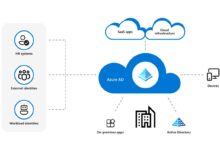
- Access is granted based on roles assigned within Azure Active Directory (Azure AD).
“Signing in to Azure isn’t just about logging into a dashboard—it’s the gateway to managing your entire cloud ecosystem.” — Microsoft Cloud Documentation
Different Types of Azure Accounts
Not all accounts are created equal. Depending on your use case, you may be using one of several types of Azure identities:
- Microsoft Personal Account: Used for individual Azure subscriptions (e.g., @outlook.com, @hotmail.com).
- Work or School Account: Managed by organizations via Azure AD, often used in enterprise environments.
- Guest User Account: External collaborators invited to access resources in another tenant.
Each account type has different permissions and management scopes. For example, a personal account might allow full subscription control, while a guest user may only have read-only access to specific resources.
Step-by-Step Guide to Sign In to Azure
Whether you’re a developer, administrator, or new user, following the correct steps ensures a smooth entry into the Azure portal. Here’s how to sign in to Azure correctly.
Accessing the Azure Portal
The primary way to sign in to Azure is through the official portal at portal.azure.com. This web-based interface provides full access to all Azure services.
- Open your preferred browser (Chrome, Edge, Firefox recommended).
- Navigate to https://portal.azure.com.
- Enter your email or phone number associated with your Microsoft or organizational account.
- Click Next, then enter your password.
- Complete any additional verification steps (like MFA).
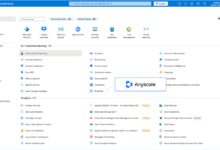
Once authenticated, you’ll land on the Azure dashboard, where you can manage resources, monitor usage, and deploy new services.
Using Azure CLI and PowerShell
For automation and scripting, many professionals prefer command-line tools. You can also sign in to Azure via Azure CLI or Azure PowerShell.
- Azure CLI: Run
az loginin your terminal. This opens a browser window for authentication. - Azure PowerShell: Use
Connect-AzAccountto initiate the login process.
These methods are especially useful for DevOps workflows and CI/CD pipelines. They support service principals and managed identities for non-interactive logins.
Common Issues When Trying to Sign In to Azure
Even experienced users face hurdles. Understanding common problems helps resolve them quickly and securely.
Forgot Password or Locked Account
One of the most frequent issues is forgetting your password or getting locked out due to multiple failed attempts.
- Use the password reset page for work/school accounts.
- For personal accounts, visit account.live.com/resetpassword.
- Ensure your recovery options (email, phone) are up to date.
Organizations should configure self-service password reset (SSPR) in Azure AD to reduce IT helpdesk load.
MFA and Authentication Failures
Multi-factor authentication enhances security but can cause login issues if not set up correctly.
- Check if your authenticator app is synced with the correct time.
- Ensure your phone has network connectivity for SMS or call-based verification.
- Approve the notification in the Microsoft Authenticator app if prompted.
If MFA is enforced but unavailable, contact your administrator to temporarily disable it or use alternative methods like backup codes.
Security Best Practices When You Sign In to Azure
Every time you sign in to Azure, you’re accessing potentially sensitive data and infrastructure. Securing this process is non-negotiable.
Enable Multi-Factor Authentication (MFA)
MFA adds an extra layer of protection beyond just a password.
- Go to My Account > Security > More security options.
- Set up two-step verification using an authenticator app, phone call, or text message.
- For organizations, enforce MFA via Conditional Access policies in Azure AD.
According to Microsoft, enabling MFA blocks over 99.9% of account compromise attacks.
Use Conditional Access Policies
Conditional Access allows admins to define rules that control how and when users can sign in to Azure.
- Require MFA from untrusted locations.
- Block access from unsupported devices.
- Enforce compliant device requirements (e.g., Intune-managed devices).
These policies dynamically evaluate sign-in risk and apply appropriate actions, such as requiring additional verification or blocking access entirely.
Advanced Methods to Sign In to Azure
Beyond basic username and password, Azure supports several advanced authentication mechanisms for automation, scalability, and security.
Service Principals and App Registrations
A service principal is an identity used by applications, services, or automation tools to access Azure resources.
- Create an app registration in Azure AD.
- Generate a client secret or certificate.
- Assign roles using Azure RBAC (Role-Based Access Control).
This method is ideal for scripts, daemons, or backend services that need to sign in to Azure without human interaction.
Managed Identities
Managed identities eliminate the need to manage credentials manually. Azure automatically handles the identity lifecycle.
- Assign a system-assigned or user-assigned identity to a VM, function app, or AKS cluster.
- Azure AD issues a token that the resource can use to authenticate to other services.
- No secrets to store or rotate—reducing security risks.
For example, a web app with a managed identity can securely access an Azure Key Vault without hardcoded credentials.
Troubleshooting Tips After You Sign In to Azure
Sometimes, even after successfully signing in, you may encounter issues accessing resources or seeing expected data.
Check Your Subscription and Role Assignments
You might be logged in, but without the right permissions, you won’t see anything.
- Verify which subscription you’re currently viewing in the portal.
- Check your role assignments under Access Control (IAM) in the subscription or resource group.
- Contact your administrator if you need Contributor, Reader, or Owner access.
Role-Based Access Control (RBAC) ensures least-privilege access, so always confirm your permissions match your responsibilities.
Clear Browser Cache and Cookies
Stale session data can cause unexpected behavior after you sign in to Azure.
- Clear browsing data (cookies, cache) in your browser.
- Try using an InPrivate or Incognito window.
- Disable browser extensions that might interfere with authentication.
If problems persist, try a different browser or device to isolate the issue.
How to Stay Secure Every Time You Sign In to Azure
Security doesn’t end at login. Ongoing vigilance is required to protect your cloud environment.
Monitor Sign-In Activity
Azure AD provides detailed logs of all authentication attempts.
- Navigate to Azure Active Directory > Sign-in logs in the portal.
- Analyze successful and failed attempts.
- Look for anomalies like logins from unusual locations or at odd hours.
You can also set up alerts using Azure Monitor or Microsoft Sentinel for suspicious activities.
Implement Identity Protection
Azure AD Identity Protection uses machine learning to detect risky sign-ins and compromised users.
- Enable risk-based policies to automatically respond to threats.
- Configure user risk policies to require password resets if anomalies are detected.
- Review risk detections regularly in the Identity Protection dashboard.
This proactive approach helps prevent breaches before they escalate.
Optimizing the Experience When You Sign In to Azure
A seamless login experience improves productivity and reduces friction for teams.
Use Single Sign-On (SSO)
SSO allows users to access multiple applications with one login session.
- Integrate Azure AD with SaaS apps like Salesforce, Dropbox, or Office 365.
- Users sign in once and gain access to all connected services.
- Reduces password fatigue and improves compliance.
SSO is especially valuable in hybrid environments where users access both on-premises and cloud resources.
Customize the Sign-In Page
Organizations can brand their Azure AD sign-in page to reflect company identity.
- Add your logo, background image, and corporate colors.
- Customize the sign-in message for clarity or security awareness.
- Configure through Azure AD > Company branding.
This not only enhances professionalism but also helps users recognize legitimate login pages, reducing phishing risks.
What should I do if I can’t sign in to Azure?
First, verify your internet connection and ensure you’re using the correct URL: https://portal.azure.com. Check your credentials, reset your password if needed, and ensure MFA is configured properly. If issues persist, consult your Azure administrator or review the official troubleshooting guide.
Can I sign in to Azure without a password?
Yes. Microsoft supports passwordless authentication methods such as Windows Hello, FIDO2 security keys, and the Microsoft Authenticator app. These options enhance security and convenience by eliminating password-related risks.
How do I switch between multiple Azure subscriptions after signing in?
After you sign in to Azure, click your profile icon in the top-right corner of the portal. Select Switch directory or Change directory to move between tenants. To switch subscriptions, use the subscription filter in the top navigation bar.
Is it safe to sign in to Azure on public computers?
No. Avoid signing in to Azure on public or shared devices. If absolutely necessary, use private browsing mode and log out completely afterward. Better yet, use Azure Cloud Shell or mobile apps with biometric authentication for limited access.
How can I automate signing in to Azure for scripts?
Use service principals or managed identities for non-interactive authentication. For scripts, run az login --service-principal -u -p --tenant in Azure CLI. Always store credentials securely using Azure Key Vault.
Signing in to Azure is more than just entering a username and password—it’s the foundation of your cloud security and operational efficiency. From understanding account types to leveraging advanced authentication methods like MFA, Conditional Access, and managed identities, every step matters. By following best practices and staying aware of potential issues, you can ensure a secure, smooth, and productive experience every time you sign in to Azure. Whether you’re a solo developer or part of a large enterprise team, mastering this process empowers you to make the most of Microsoft’s powerful cloud platform.
Further Reading: